NoIP domain name: create a free hostname and set up DDNS for remote access
How to create a free NoIP domain name, generate a DDNS Key and configure IP updates on a PC, router or camera so you can reach office devices remotely.
A NoIP domain name is a free hostname issued by No-IP (for example yourname.ddns.net) that always points to the current public IP address of your office network, even when your ISP changes it. To use one, you create the hostname at No-IP and let a router, camera or the DUC software send new IP addresses automatically.
What a NoIP domain name is and what it is for
No-IP describes Dynamic DNS (DDNS) as a technology that automatically updates a domain name with a device's current IP address. This matters on networks without a static IP: the ISP can change the public IP at any time, and the address you noted yesterday may be wrong today. With a NoIP domain, you only remember one hostname, while a device or piece of software keeps track of the IP.
According to No-IP, its free DDNS service is commonly used for smart home devices, security cameras and web servers. For small businesses, typical cases are:
- Watching shop or warehouse cameras and recorders from a phone while away.
- Reaching a NAS or an internal server in the office.
- Connecting remotely to the router or a computer on the local network.
Two points are worth understanding. First, a NoIP domain is not a brand domain for a company website or email. Second, it only makes the hostname point to the current IP; to actually reach a camera or server you usually still need port forwarding on the router — No-IP treats this as the next step after DDNS.
What to prepare before creating a NoIP domain
- An active email address to receive the account confirmation.
- Login access to a device physically on the network you want to reach: a router, camera, recorder, or a computer that stays on there. No-IP states that DDNS setup needs a device that exists at that network.
- Knowing which device you want to reach and which port it uses (for example a recorder, camera or NAS).
Step 1: Create an account and a hostname at No-IP
- Go to noip.com, click the Sign Up link at the top of the page, fill in the required fields and click the Free Sign Up button.
- Open the confirmation email from No-IP and activate the account. BKNS's guide suggests checking the Spam/Junk folder if the message is not in your inbox.
- If you did not create a hostname during sign-up, go to Managed DNS > DNS Records and click the green Create Hostname button.
- Type the name you want (for example shop-camera) and pick the domain part from the drop-down list. According to BKNS, the free list includes endings such as ddns.net, hopto.org and sytes.net; if the name is taken, the system asks you to choose another.
- Leave the record type as A unless you need a different one. The IPv4 Address field is usually pre-filled with your current public IP; change it only if you want to use a different IP.
- Tick Enable Dynamic DNS and click Create.
Some older Vietnamese guides mention menus such as Hosts/Redirects or Dynamic DNS > No-IP Hostnames. The No-IP interface has changed over time, so follow the menu names you actually see in your account.
Step 2: Choose how the IP is updated and create a DDNS Key
Once the hostname is created, No-IP opens the Setup Dynamic DNS window so you can declare what will send new IP addresses (called the update client).
- Select the update client you plan to use — a router, a camera or the DUC software on a computer — download the software if needed, then click Next.
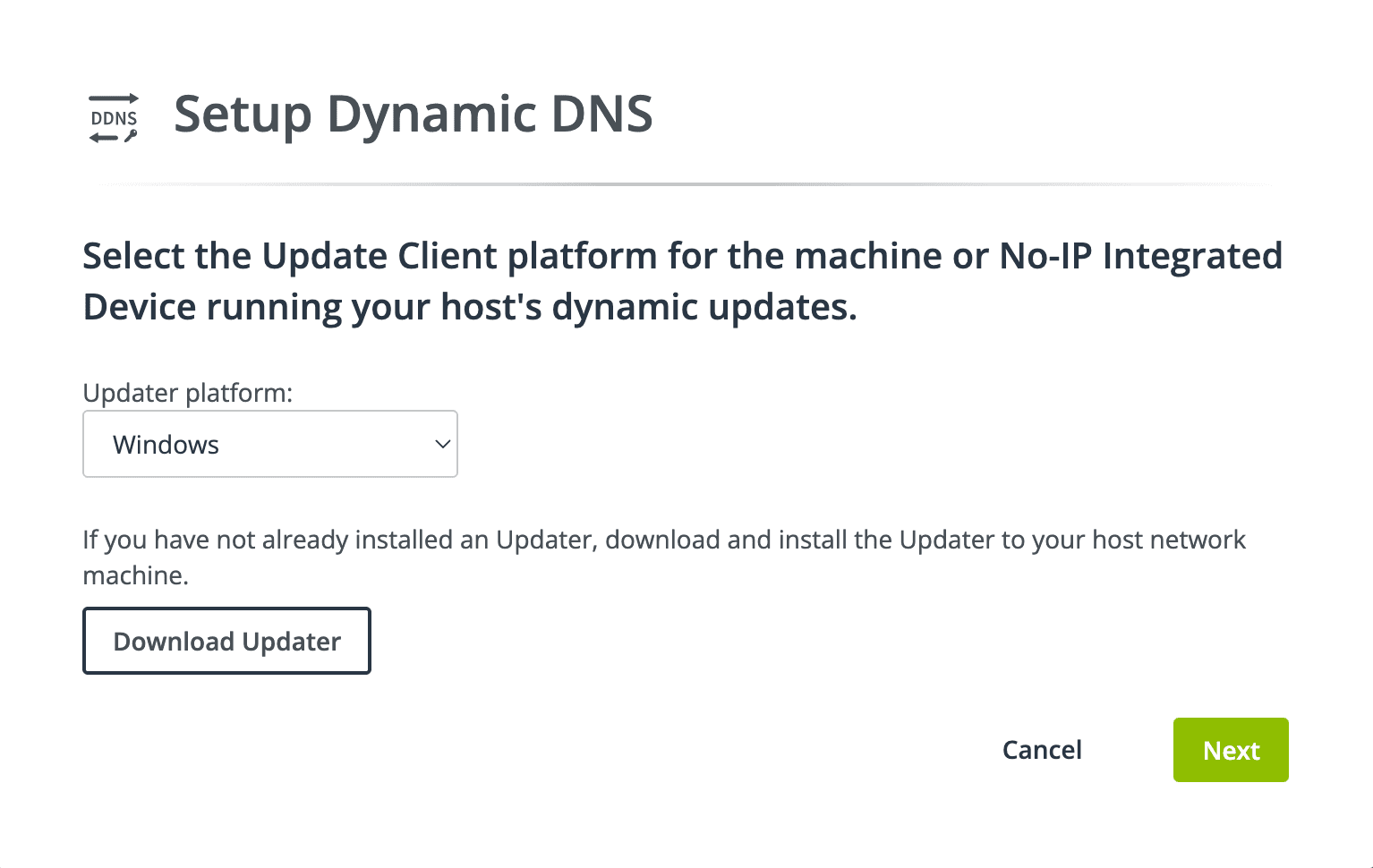 Image: No-IP · Source: noip.com
- Enter a description (Friendly Name) for the update client, for example 'Office router', then click Generate DDNS Key.
- Write down the DDNS Key Username and DDNS Key Password right away. No-IP says this is your only chance to copy the password, so store it in your company's password manager.
 Image: No-IP · Source: noip.com
Step 3 – option 1: Update the IP with the DUC software on a computer
This suits cases where the router does not support No-IP or you cannot access the router. The computer running DUC must be on the network you want to reach and stay on.
- Download the Dynamic Update Client (DUC) for Windows or Mac from No-IP's download page. The Linux version has its own installation guide from No-IP.
- Install and open the application.
- Enter the DDNS Key Username and DDNS Key Password saved in step 2.
- Tick the checkbox next to all.ddnskey.com.
BKNS advises downloading DUC only from No-IP's official site and enabling the option to start automatically when you log in to Windows in DUC's settings, so IP updates continue after a restart (power cut, operating system update). The option name may differ between versions.
Step 3 – option 2: Configure a router, camera or recorder
No-IP says routers, cameras, DVRs and most devices that can be accessed remotely support its service. The general process:
- Log in to the device following the manufacturer's instructions.
- Find the Dynamic DNS or DDNS section, usually under the Advanced settings.
- Fill in the fields as in the table below, then save the configuration.
| Field on the device | Value to enter |
|---|---|
| DDNS Provider | No-IP |
| Username | DDNS Key Username (or email, depending on device) |
| Password | DDNS Key Password |
| Hostname/Domain | all.ddnskey.com |
| Server/Server Address | dynupdate.no-ip.com |
Not every device asks for a server address; according to No-IP, the service still works without it.
Example with Hikvision cameras and recorders
A guide on the Hikvision Vietnam site (published in 2021) describes setup through a web browser:
- Log in to the device and open the Configuration menu.
- Go to Network > Basic Settings > DDNS.
- Tick Enable DDNS, choose NO-IP as DDNS Type, set Server Address to dynupdate.no-ip.com, enter your NoIP domain in the Domain field, then fill in User name and Password.
- Click Save.
The Hikvision article tells you to enter your No-IP account in the User name/Password fields, whereas No-IP's current guide uses a DDNS Key. If the device reports a login error, try the DDNS Key details and check the device maker's latest documentation. When adding the device to the iVMS-4500 phone app, Hikvision says to choose IP/Domain mode, enter the hostname as Address, and use port 8000 by default (or your new port if you changed it).
Checking and fixing a NoIP domain that does not update
- In your No-IP account, look at the IP address assigned to the hostname.
- While on the same network as the device you configured, open No-IP's port check tool to see your current public IP. The two addresses should match.
- If they do not, recheck the DDNS fields, look for a firmware update for the device, and make sure DDNS is Enabled.
- Test from outside: Buildnas's guide suggests turning off Wi-Fi on your phone, using mobile data and opening the hostname with the device's port.
If the IP matches but you still cannot see the camera, BKNS lists common causes: no port forwarding or the wrong port, the camera's LAN IP changed, a firewall blocking traffic, a misconfigured router, or the ISP using CGNAT (many customers sharing one public IP). CGNAT cases usually require contacting the ISP.
Free plan limits and security notes
The official No-IP guide this article relies on does not detail the free plan's limits. Vietnamese guides report:
- BKNS: the Free Dynamic DNS plan allows up to 3 hostnames per account and may require periodic confirmation.
- Buildnas: a free hostname must be renewed roughly every 30 days, and No-IP emails a reminder before it expires.
Check these conditions on No-IP's own pages before relying on the service for important systems, and use a notification email that someone reads regularly.
On security, No-IP strongly recommends enabling Two-Factor Authentication on the account. BKNS stresses that No-IP is only a DDNS tool and does not make a system safer by itself; safety depends on device passwords, open ports, firewall and firmware. For important systems such as an accounting server or customer data, consider a VPN instead of exposing ports directly to the Internet.
When to use your own domain instead of a NoIP domain
| Criterion | Free NoIP domain | Own domain (.vn, .com.vn, .com) |
|---|---|---|
| Main purpose | Reaching devices on a dynamic IP | Website, email, company brand |
| Address format | yourname.ddns.net | yourcompany.vn |
| Cost | Free plan available | Paid yearly, see the price list on the product page |
| Where to register | No-IP account | Domain registrar |
If you only need to watch cameras or reach a NAS remotely, a NoIP domain is usually enough. When you need a website, company-branded email or an address customers recognise, a business should register its own domain. For .vn or .com.vn domains with Vietnamese-language support, you can look at the domain services of iNET, Mắt Bão or Tenten — Tenten separates the state fee, service fee and tax in its .vn price list.
If you only need an international domain such as .com and want to manage it together with hosting, Hostinger is one option to compare: it offers free WHOIS protection and manages domains alongside hosting in hPanel, but does not sell .vn domains, and renewal prices are higher than the first year, so check the vendor's pricing page. The link above is a partner link: Dùng Gì may earn a commission if you sign up or buy through it.
Frequently asked questions
Is a NoIP domain free?
Yes. No-IP offers a free Dynamic DNS service; you only need to create an account and confirm your email. According to Vietnamese guides, the free plan limits the number of hostnames and needs periodic reconfirmation, so read the current conditions on No-IP's site.
Do I need a static IP to use a NoIP domain?
No. DDNS exists precisely for networks with dynamic IPs. As long as the router, camera or DUC software is configured correctly, the hostname is updated to the new IP whenever the ISP changes it.
Why can't I view my camera remotely after creating a NoIP domain?
DDNS only makes the hostname point to the right IP; it does not open a path to the camera. Check that the hostname's IP matches your public IP, then review port forwarding on the router, the camera's local IP, the firewall and whether your ISP uses CGNAT.
What if I forgot to save the DDNS Key password?
No-IP says the DDNS Key password is shown only once, when it is created. Its getting-started guide does not explain how to recover it, so see the DDNS Key article in No-IP's support center or contact No-IP support.
Sources
- Free Dynamic DNS Setup Guide: No-IP DDNS Explained
Vendor page
- Hướng dẫn sử dụng các dịch vụ tên miền DDNS của bên thứ ba trên đầu ghi / camera IP Hikvision
Vendor page
- Tên miền NoIP là gì? Hướng dẫn đăng ký & cài đặt DDNS từ A-Z
Other source
- Hướng dẫn tạo tên miền DDNS bằng NO-IP, Dynu - Xpenstore
Other source