What Does GIMP's Workspace Look Like?
This guide breaks down every part of GIMP's workspace — toolbox, tool options, docks, canvas — and shows how to switch display modes when needed.
GIMP's workspace opens by default in single-window mode: the toolbox and tool options sit on the left, the canvas fills the center, and docks like Layers and Channels sit on the right. This guide walks through each part and how to switch layouts if you need to.
Overview of GIMP's workspace
According to GIMP's official documentation, when you open GIMP for the first time it opens in single-window mode by default — meaning the toolbox, dialogs, and the image you're editing all live inside one window instead of being scattered across several small windows like in older GIMP releases.
In single-window mode, the screen is split into three main areas:
- Left panel: the Toolbox and Tool Options (settings for whichever tool is currently selected).
- Center: the canvas, which displays the image you're working on and fills the remaining space between the two panels.
- Right panel: multi-tab docks — one grouping Brushes, Patterns, Fonts, and Document History, another grouping Layers, Channels, and Paths.
When you open several images at once, a tab bar appears above the canvas to switch between them, similar to browser tabs.
The current stable release of GIMP is 3.2.6 (released 2026-09-10, per the official downloads page); the single-window layout described here applies to GIMP 2.10 and later.
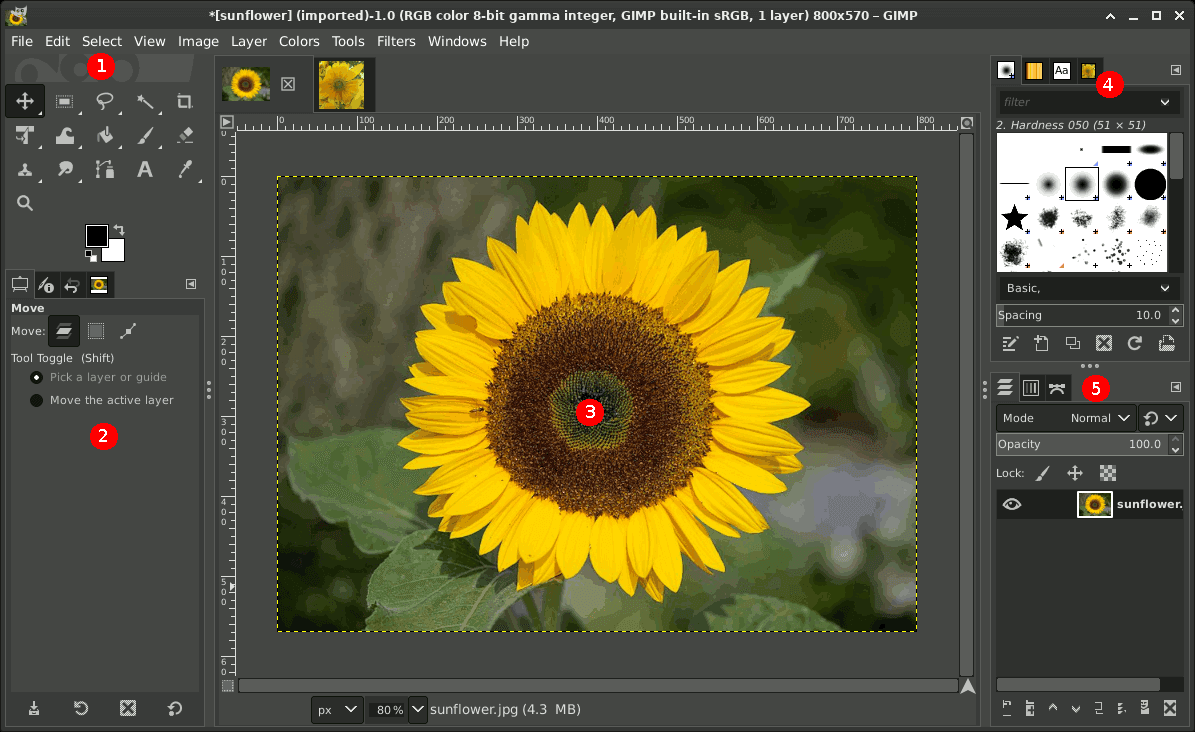 Image: GIMP Documentation Team · Source: docs.gimp.org
Each part of the workspace
Title bar and menu bar
The title bar shows the name of the open image file; an asterisk (*) appears before the name if the image has unsaved changes. The menu bar sits right below it and gives access to nearly every GIMP command (File, Edit, Select, Image, Layer, and so on); you can also open the menu by right-clicking the canvas or using the Menu button in the window's top-left corner.
Toolbox and Tool Options
The toolbox is the row of tool icons (selection, painting, transform, and so on), along with the foreground/background color swatches and the current brush and pattern. Per GIMP's documentation, tools are grouped together by default to save space — to reach another tool in the same group, press and hold on the group icon. If that's inconvenient, you can turn grouping off under Edit → Preferences → Toolbox by unchecking "Use tool groups," which makes every tool appear directly without the extra click.
Right below the toolbox sits Tool Options, a panel that changes depending on which tool is active (a rectangle select tool shows corner-rounding options, a paintbrush shows size and opacity options, and so on).
Right-side docks: Layers, Channels, Paths
The right panel holds the dialogs most needed when editing layered images: Layers (manages stacked image layers), Channels (color channels), and Paths (vector paths). A separate dock groups Brushes, Patterns, Fonts, and Document History. Each dock has its own tabs and can be dragged to rearrange.
Canvas, rulers, and the status bar
The canvas is where you view and directly work on the image. Rulers along the top and left edges help you read coordinates, and you can drag from a ruler onto the image to create a guide line. At the bottom of the window sits the status bar, which shows the original .xcf file name, how much memory the image is using, the cursor's coordinates, the current zoom level, and progress for heavier operations. You can zoom in or out using the Zoom control at the bottom of the window, Ctrl + mouse wheel, or the View menu.
Switching between single-window and multi-window mode
Some people who work across multiple physical monitors prefer splitting the toolbox and docks into separate windows they can drag to a second screen. GIMP still supports the older multi-window layout:
- Open any image in GIMP.
- Go to the Windows menu.
- Uncheck Single-Window Mode.
The interface immediately splits into several independent windows: a standalone Toolbox window, each dialog (Layers, Brushes, and so on) as its own small window, and each open image in its own image window. To go back, open Windows → Single-Window Mode again and check it. Note that GIMP remembers this choice — whichever mode is active when you quit is the mode it opens in next time.
When the layout gets messed up: recovering a lost panel
Accidentally closing a dock or dragging a panel out of place is common, especially for new users. GIMP's documentation points to two quick fixes:
- Hide every panel temporarily: press Tab to hide the toolbox and all docks, leaving only the canvas — handy for viewing an image full-screen; press Tab again to bring everything back.
- Recover a dock you just closed: go to Windows → Recently Closed Docks (this command only appears while an image is open) to reopen the dock without rebuilding your layout from scratch.
What GIMP's workspace is useful for in a small business
For small businesses, GIMP is commonly used to touch up product photos, crop or assemble social media banners, or prepare images for internal documents and presentations — work that doesn't call for paid design software. Images edited in GIMP typically get placed into Word documents, slides, or emails; if your team already works in an office suite such as Microsoft 365 Business or Google Workspace for drafting and collaboration, understanding GIMP's workspace lets whoever handles images prepare them in-house before dropping them into those documents, instead of relying on outside design help.
Frequently asked questions
What mode does GIMP's workspace open in by default?
By default it opens in single-window mode: the toolbox and tool options on the left, the canvas in the center, and docks like Layers on the right. This has been the default since GIMP 2.10.
How do I quickly hide the toolbox and docks to see an image full-screen?
Press Tab to hide every panel, leaving only the canvas; press Tab again to bring them back.
I accidentally closed a dock, like Layers — how do I get it back?
With any image open, go to Windows → Recently Closed Docks and GIMP will list the docks you recently closed so you can reopen them.
Can I split the toolbox into its own window like older GIMP versions?
Yes. Go to Windows and uncheck Single-Window Mode to switch to multi-window mode, which splits the toolbox and each dialog into separate windows.
Why does the toolbox only show a few tools instead of all of them?
By default GIMP groups related tools together to save space. Go to Edit → Preferences → Toolbox and uncheck "Use tool groups" so every tool shows up directly.
Sources
- 2. Main Windows — GIMP 3.2 User Manual
Vendor page
- 2.2. Image Window — GIMP 3.2 User Manual
Vendor page
- 2. Main Windows — GIMP 2.10 User Manual
Vendor page
- 6.13. Toolbox (Preferences) — GIMP 3.0 User Manual
Vendor page
- GIMP - Downloads
Vendor page